Create a Budgie Backup File
Updated 7th September 2026 by Simon Fearby · Budgie Backup (alpha)

Choose what matters, then save it as a reusable .budgiebackup plan file.
Part of the Budgie Backup suite. One installer covers all six apps.
Download Budgie BackupCreating a Budgie Backup File
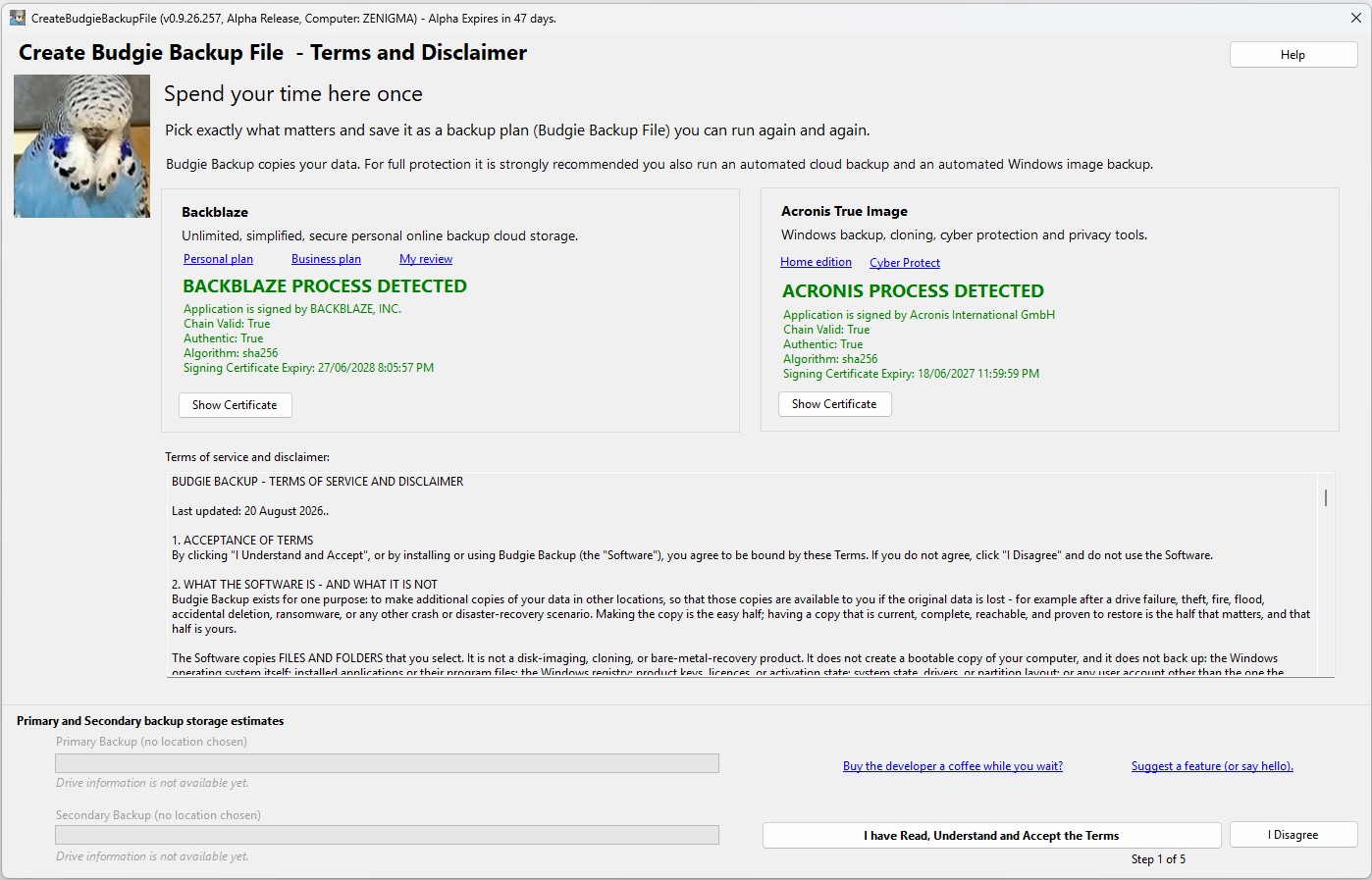
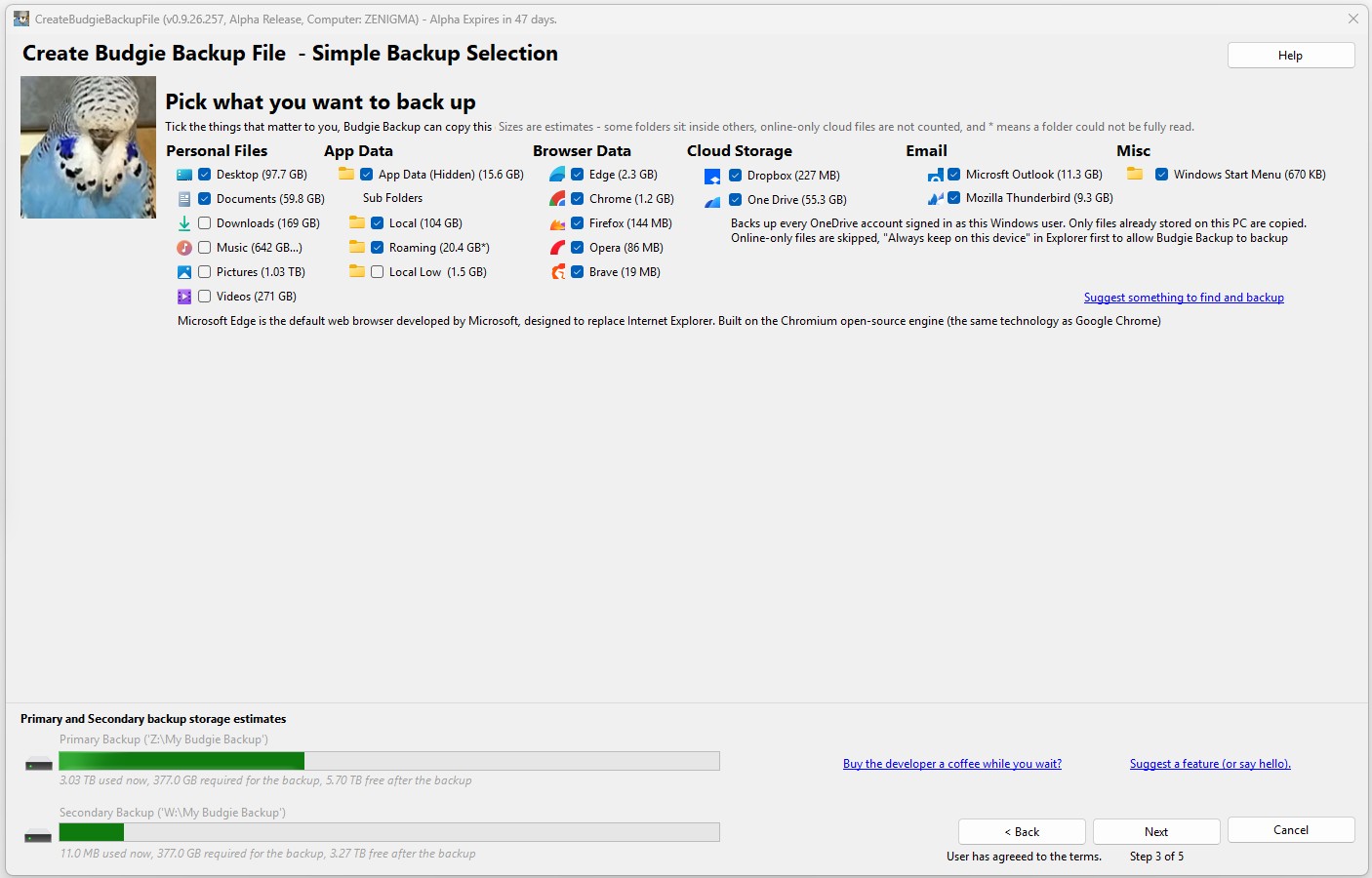
Everything starts here. Read the terms, accept them, and click Next. Choose your primary backup drive, and a secondary drive if you have one. That's where your backups will go. The next screen asks the obvious questions. Do you want to back up your Documents, Pictures, Desktop, Downloads, email and browsers?
Terms and Disclaimer
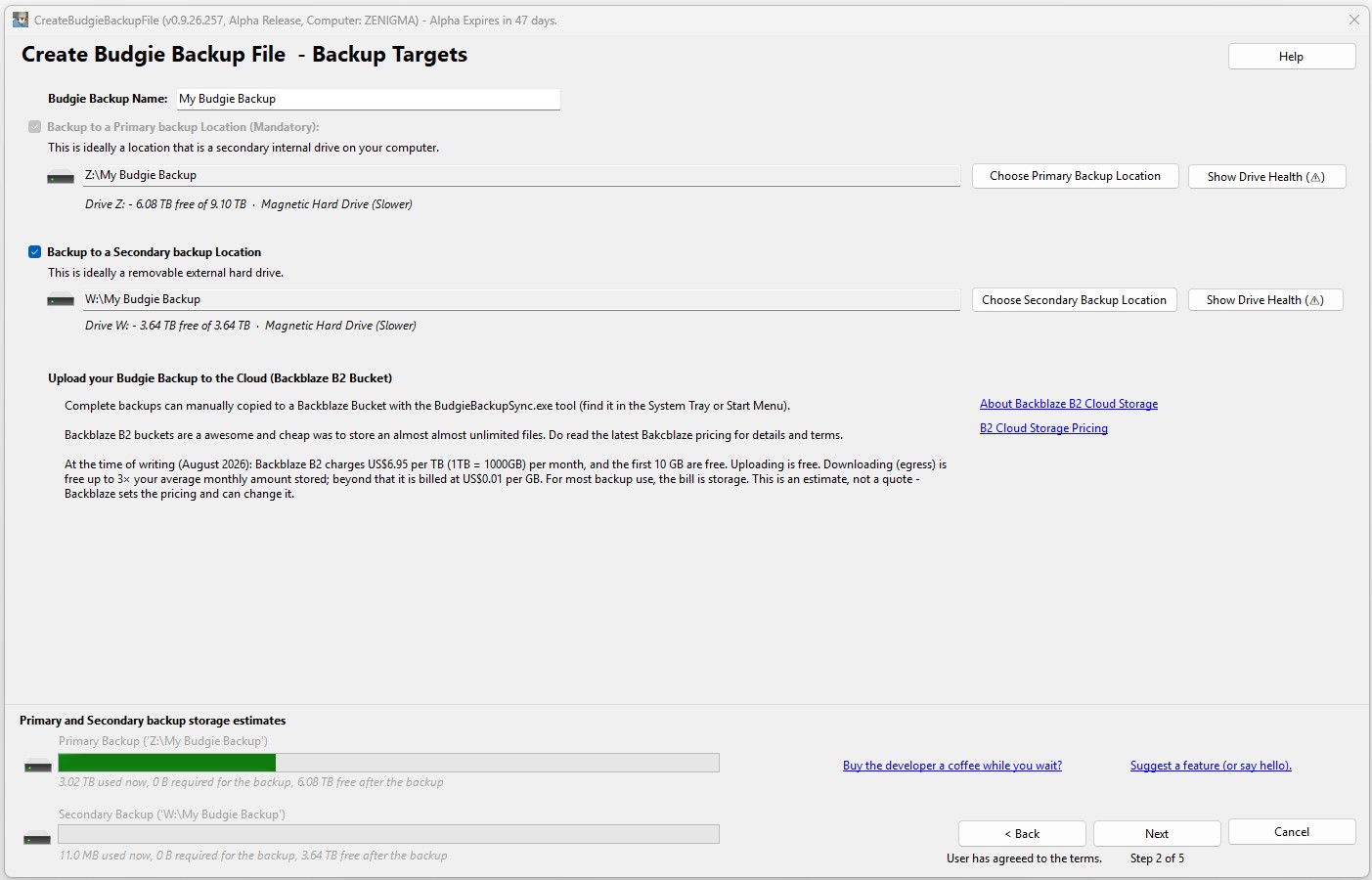
Backup Name and Location(s)
Budgie Backup won't let you point a backup at a location that could put your data at risk. Before a destination is accepted, it's checked against core Windows system folders (Windows, System32/SysWOW64, Program Files, ProgramData, the Recycle Bin, System Volume Information), the app's own folder, and - for backup destinations specifically - your everyday user-data folders such as Desktop, Documents, Pictures, Downloads, AppData and OneDrive, since writing a backup into any of these risks overwriting real data or backing itself up in an endless loop.
A bare drive root is rejected in favour of a dedicated subfolder, and your primary and secondary locations are checked against each other so they can't be the same folder or nested inside one another. Critically, every destination is also cross-checked against the folders you're actually backing up, so a backup can never be written inside - or contain - one of its own sources. Because the backup engine runs with administrator rights, every path is independently re-validated at run time against tampering tricks like directory traversal, wildcards and hidden control characters before it ever reaches the filesystem, and a write test plus free-space check run before a single file is copied. Files that are open or in use are read via a Windows Volume Shadow Copy snapshot, so the backup never needs to lock or interfere with anything on the source drive.
And when updating a previous backup rather than replacing it, Budgie Backup enforces one unconditional rule above all others: nothing located under a source folder is ever deleted or modified - if there's any doubt, the file is kept.
Simple Backup Select
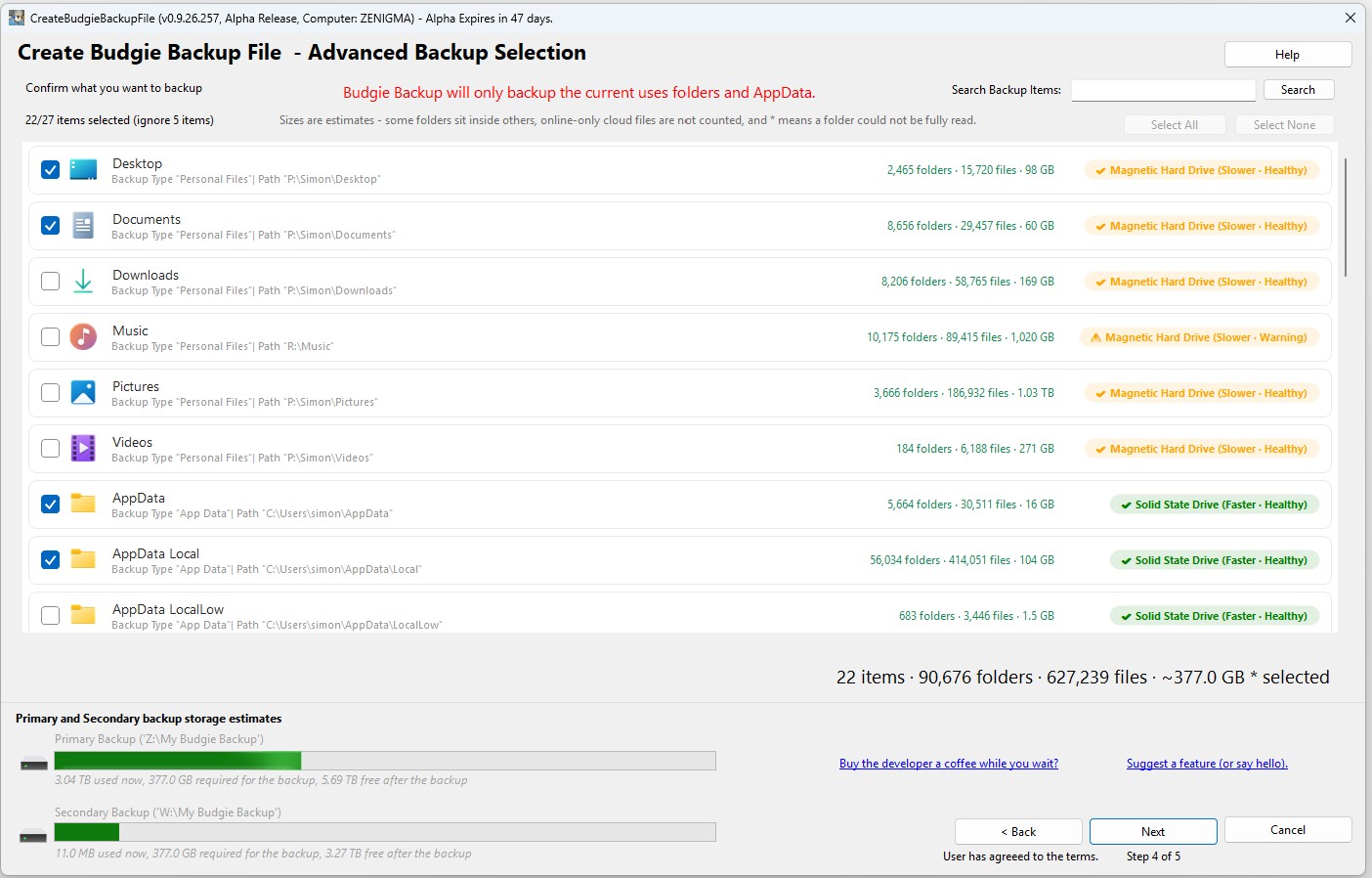
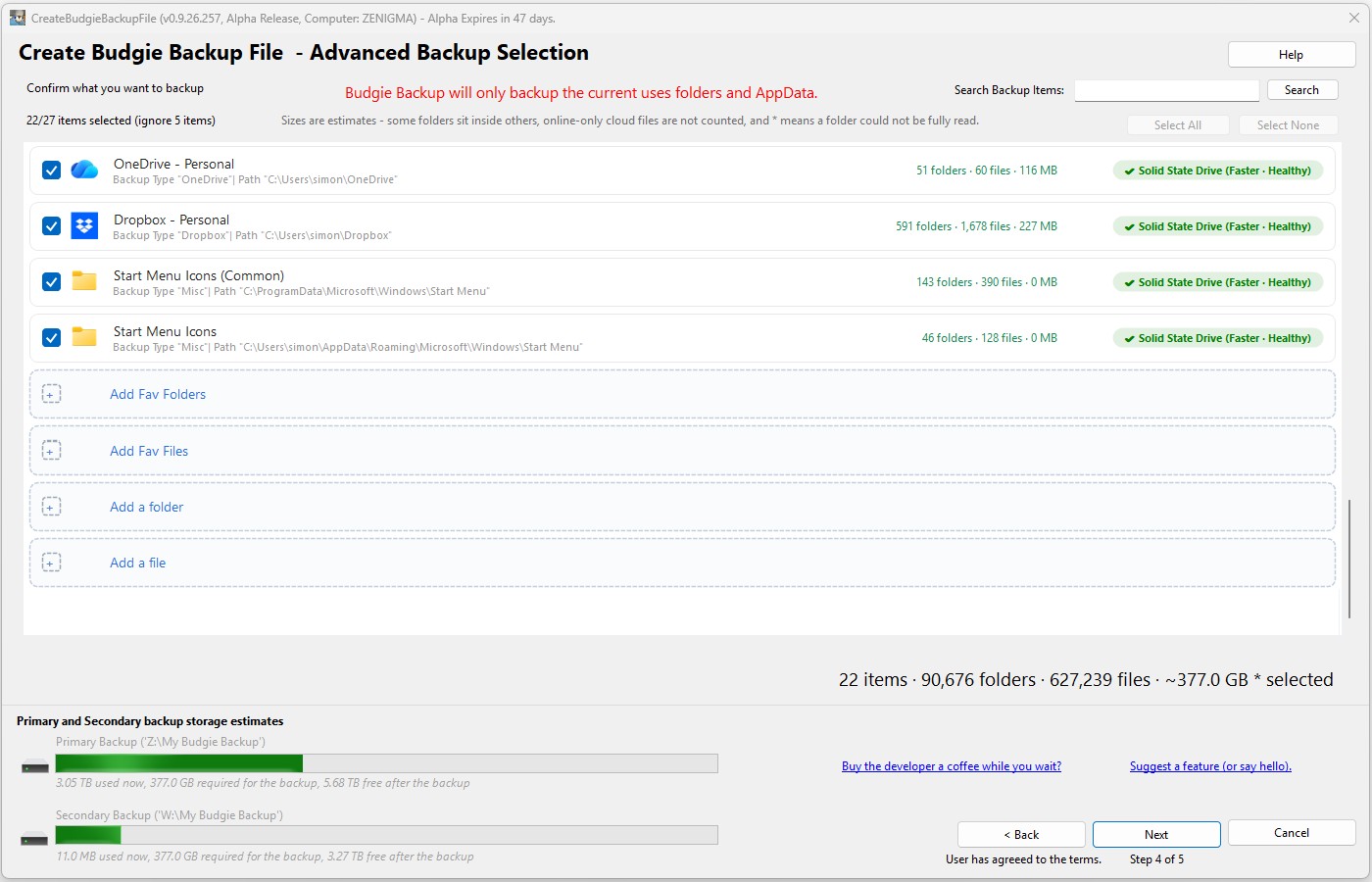
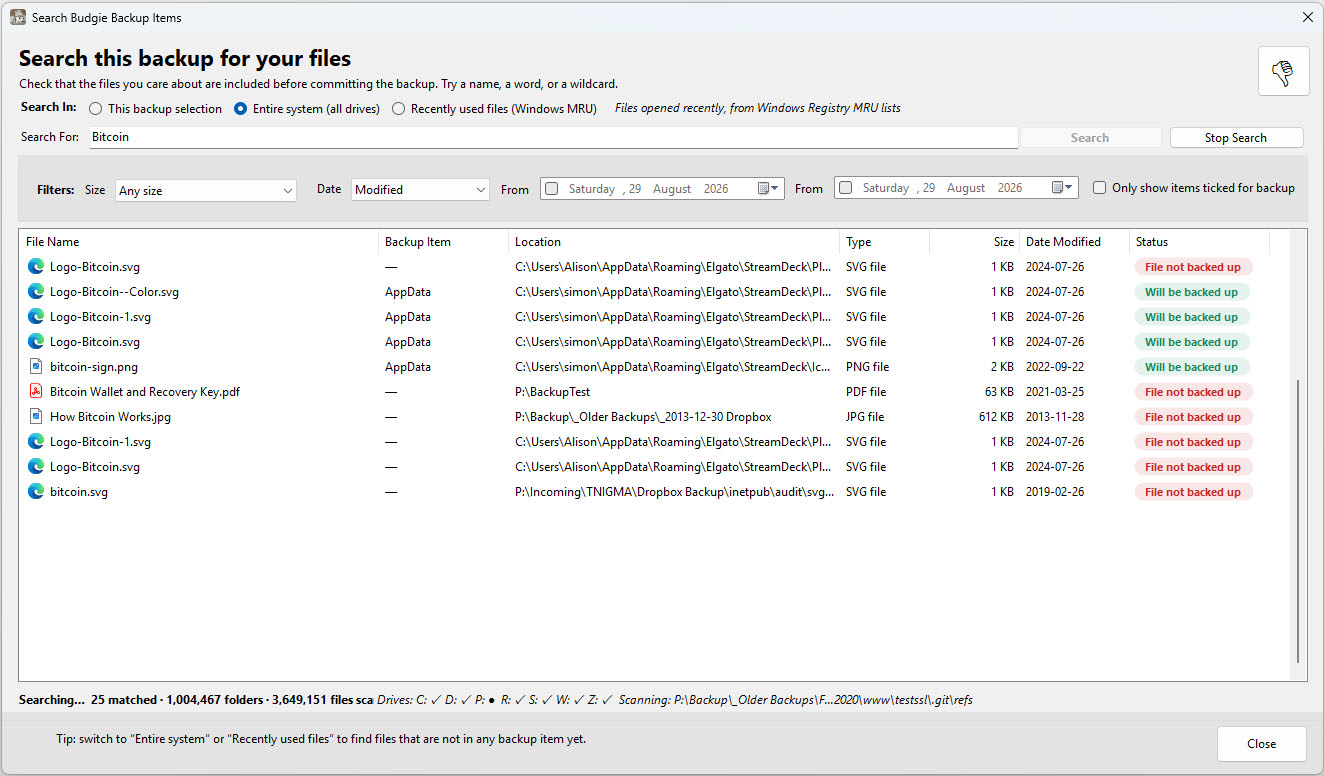
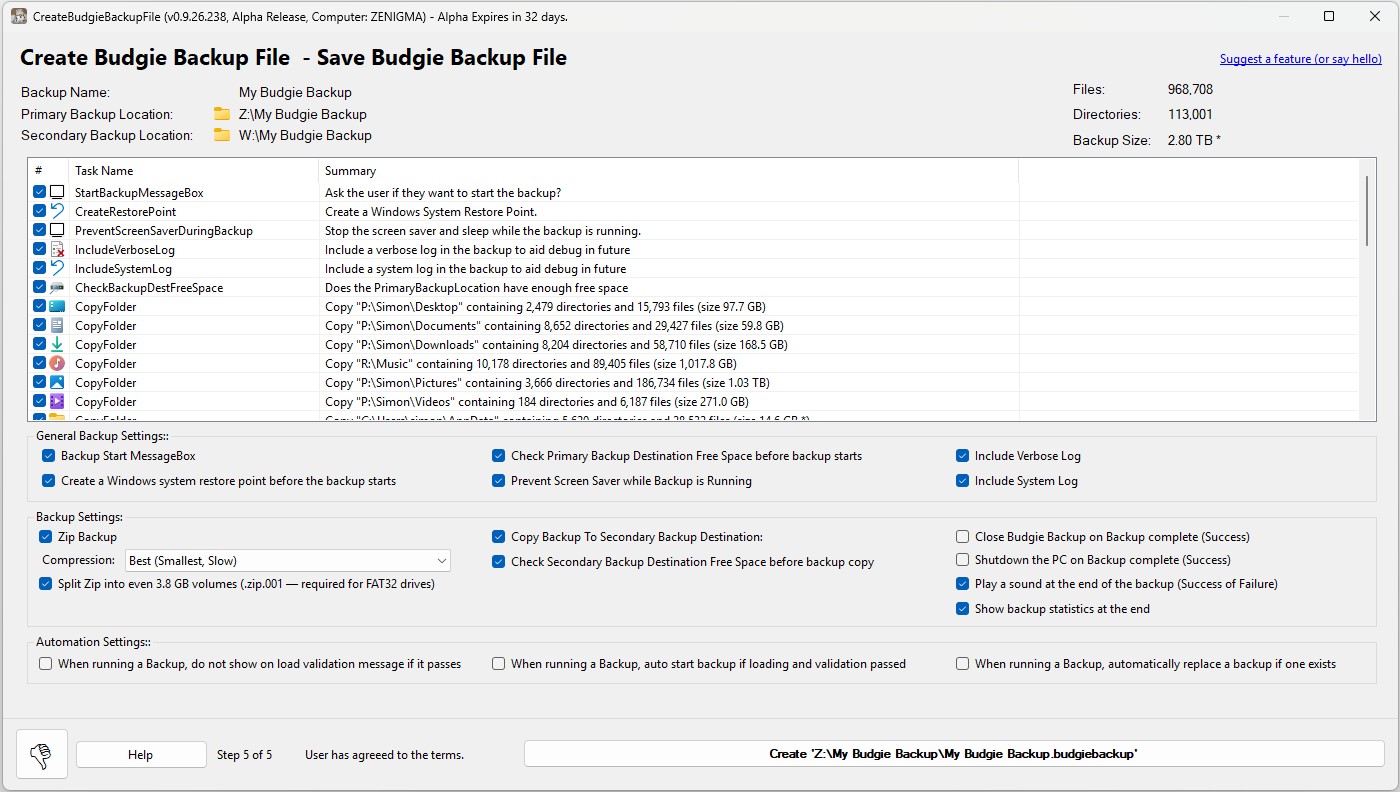
The Advanced screen lets you go further and pick anything else on the machine. Then search your selections, to be sure the files you care about are actually in the list. Save your choices to a Budgie Backup file. That file is your backup plan. Nothing has been copied yet.
Add Fav or custom files and folders
Backup Search Pre Backup
Add Custom Fles or Folders

Create Budgie Backup File
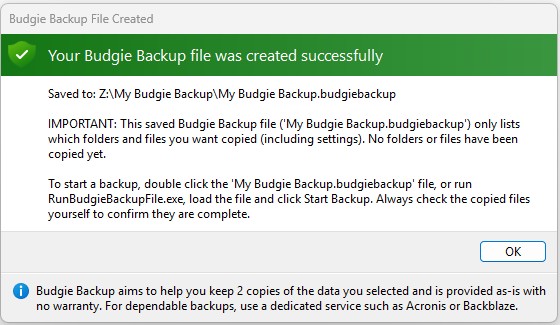
Create Budgie Backup File Saved
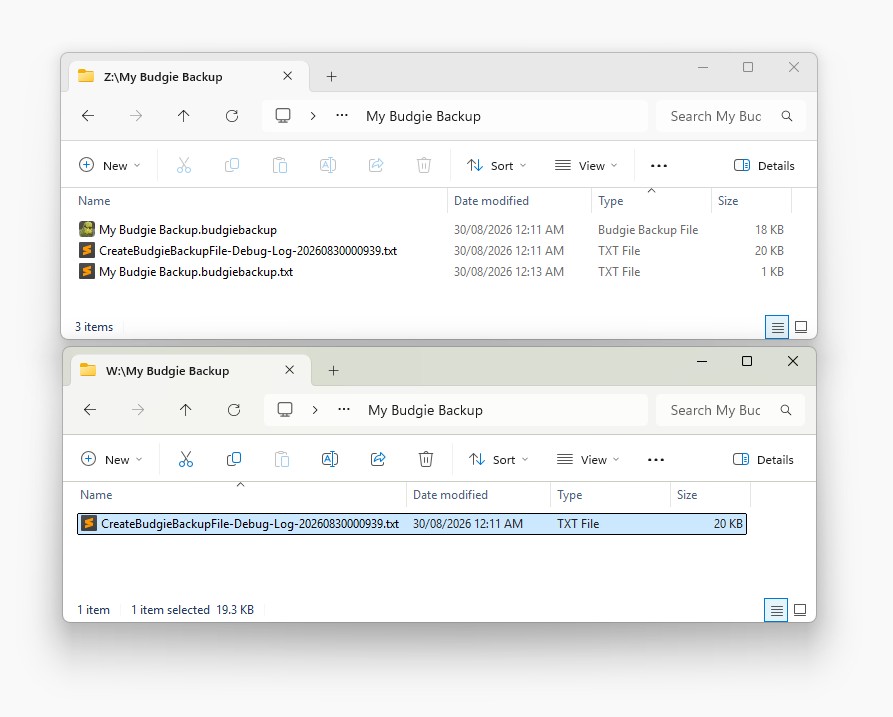
Backup Destinations are ready (along with log files incase of recovery)
The rest of the suite
Help Test Early Builds
This is a work in progress, features will change.
If you wan't to help test Alpha builds reach out here: alpha-test-request-budgiebackup@fearby.com or reach out and suggest a feature here: budgiebackup@fearby.com.
Buy Me a Coffee and support the development.
Return Home